
Project description
In this project, I stepped into the role of a security professional at an organization where my primary responsibility was supporting the research team. One of the critical aspects of this role is managing authorization and access control — ensuring that only the right users have the right level of permissions to access sensitive files.
The scenario tasked me with:
- Reviewing existing file system permissions – identifying which users and groups currently had access to a directory used by the research team.
- Comparing permissions with intended authorization policies – checking whether the access levels aligned with what should be granted.
- Correcting mismatched permissions – authorizing the appropriate users while removing unauthorized access.
This exercise reflects a simple security responsibility — through Linux commands only: least privilege access. By enforcing the principle of least privilege, organizations reduce the risk of data leaks, insider threats, and accidental exposure of sensitive research information.
Check file and directory details
To review all file permissions (including hidden files) in the projects directory, I used the long listing command with the -a option:
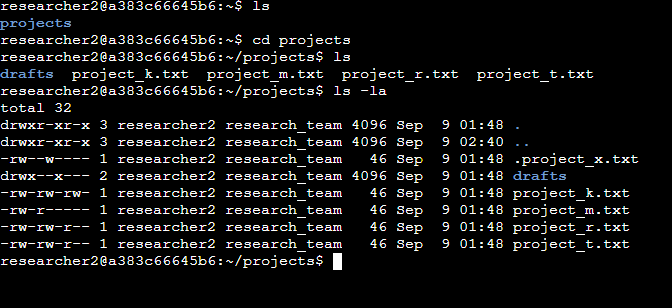
Describe the permissions string
Using example: -rw-r–r–
10-character strings represent the file type and permissions:
Final three characters (r--) → Define permissions for all other users. Others can also read the file, but cannot write or execute.
First character (-) → Identifies the type of item. In this case, - means it’s a regular file. (If it were a directory, it would show d.)
Next three characters (rw-) → Define the owner’s permissions. Here, the owner can read (r) and write (w) the file, but cannot execute (-).
Middle three characters (r--) → Define the group’s permissions. The group can read the file, but cannot write or execute.
Change file permissions
The organization’s security policy states that “others” should never have write access to files. After reviewing the permissions in the projects directory, I identified the following issue:
-rw-rw-rw- 1 researcher2 research_team 46 Sep 9 23:49 project_k.txt
Simply put:
-= regular file.rw-= owner (researcher2) can read and write.rw-= group (research_team) can read and write.rw-= others can read and write (not allowed by policy).
Everyone can read and write to the file, and to correct this, I used the chmod command to remove write access for “others”:
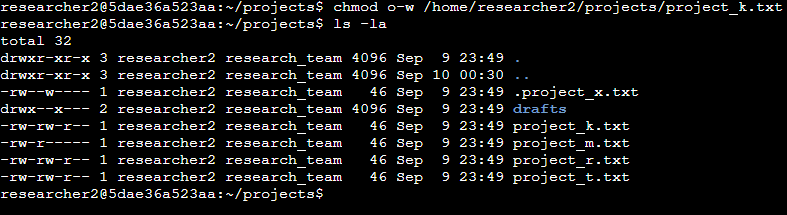
Change file permissions on a hidden file
The hidden file .project_x.txt was archived by the research team. According to policy, archived files should not have write permissions for anyone, but both the user (owner) and the group should still be able to read it.
Current permissions: -rw–w—- 1 researcher2 research_team 46 Sep 9 23:49 .project_x.txt
This violates policy because both the owner and group have write permissions, and the group does not even have read access.
To fix this, I used the chmod command to set permissions so the owner and group can read, but no one can write:
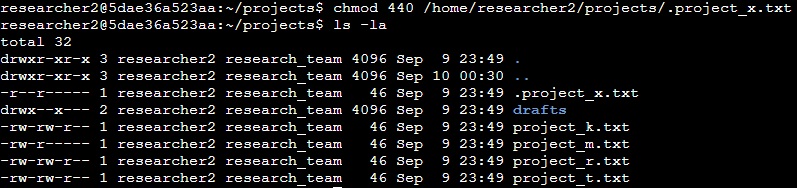
Final result: The file is now read-only for the owner and group, and inaccessible to others which would be considered fully compliant with the organization’s current policy.
Change directory permissions
According to organizational policy, only researcher2 should be able to access the drafts directory and its contents. That means the group and others should have no permissions.
To fix this, I removed all group and other permissions with the following command:

drwx—— confirms only researcher2 has access.
Summary
This project focused on applying authorization and access control practices within a Linux environment. I reviewed file and directory permissions, identified misconfigurations, and corrected them to ensure alignment with the given organizational security policies.
The work involved removing unnecessary write permissions, setting appropriate read-only access for archived files, restricting directory access to the authorized owner, and more. These changes will help reinforce the principle of least privilege and reduced the risk of unauthorized access to sensitive research data.
Through this exercise, I demonstrated practical experience in auditing and managing Linux permissions, as well as the ability to apply security concepts I already knew to protect organizational assets and strengthen overall system security.
